We've talked a lot about how Firecracker works — time to actually start a VM. Our goal for now is simply to get a first VM running and send commands to it, while we will try to be efficient we are not yet optimizing for speed.
Every VM is made up of two things:
- A filesystem: This is essentially all the files that you would see in your
/folder - A kernel: The core of the operating system that manages hardware and runs processes
Once we have a filesystem and kernel, we can start the microVM.
The filesystem
Talking to our MicroVM
In order to define our filesystem, we need to first decide how we are going to communicate with our MicroVM and send commands. We have a few options:
MMDS(MicroVM Metadata Service): This is typically used for adding secrets or environment variables to a VM, this is not a good option for usSSH: Standard remote shell, works well but can be slow to start and requires networking to be configuredvsock: Since Firecracker implements an emulation of vsock, we can use it to communicate between the host and the guest VM. This is the best option for us.
In order to use vsock for communicating between the microVM and the host, we need to implement a service that listens
for data sent by the host (commands) and sends data back from the guest (command output logs) based on the command output.
For this we are going to use socat which enables a bi-directional data stream between two endpoints. The socat CLI tool
takes two addresses and connects them. In our case we will use the addresses:
VSOCK-LISTEN:5000: We are listening to host commands on port 5000EXEC:"/bin/sh -i": Run an interactive shell for each connection The rest is just options for socat.
Creating the filesystem
We are going to be using Alpine as the base filesystem and then add an init script to start socat when we start the microVM:
#!/bin/bash

ROOTFS_DIR="/root/firecracker-vm"
ROOTFS_IMG="${ROOTFS_DIR}/rootfs.ext4"
ALPINE_TAR="${ROOTFS_DIR}/alpine-minirootfs-3.21.3-x86_64.tar.gz"
MOUNT_POINT="/tmp/firecracker-rootfs"

# Create ext4 image
truncate -s 200M "$ROOTFS_IMG"
mkfs.ext4 -q "$ROOTFS_IMG"

# Mount and extract Alpine
mkdir -p "$MOUNT_POINT"
sudo mount "$ROOTFS_IMG" "$MOUNT_POINT"
sudo tar xzf "$ALPINE_TAR" -C "$MOUNT_POINT"

# Install socat
sudo cp /etc/resolv.conf "$MOUNT_POINT/etc/resolv.conf"
sudo chroot "$MOUNT_POINT" /bin/sh -c "apk add --no-cache socat"

# Write init script
sudo tee "$MOUNT_POINT/etc/init-vsock.sh" > /dev/null << 'EOF'
#!/bin/sh
mount -t proc proc /proc
mount -t sysfs sys /sys
mount -t devtmpfs dev /dev
mkdir -p /dev/pts
mount -t devpts devpts /dev/pts

socat VSOCK-LISTEN:5000,reuseaddr,fork EXEC:"/bin/sh
-i",pty,stderr,setsid,sigint,sane &
exec /bin/sh
EOF
sudo chmod +x "$MOUNT_POINT/etc/init-vsock.sh"

sudo umount "$MOUNT_POINT"
echo "rootfs ready at $ROOTFS_IMG"
Downloading a kernel
For the kernel we are going to use the one provided by the Firecracker team, it's a small bare Linux kernel without GPU, USB, sound, etc support.
ARCH="$(uname -m)"
release_url="https://github.com/firecracker-microvm/firecracker/releases"
latest_version=$(basename $(curl -fsSLI -o /dev/null -w  %{url_effective} ${release_url}/latest))
CI_VERSION=${latest_version%.*}
latest_kernel_key=$(curl "http://spec.ccfc.min.s3.amazonaws.com/?prefix=firecracker-ci/$CI_VERSION/$ARCH/vmlinux-&list-type=2" \
    | grep -oP "(?<=<Key>)(firecracker-ci/$CI_VERSION/$ARCH/vmlinux-[0-9]+\.[0-9]+\.[0-9]{1,3})(?=</Key>)" \
    | sort -V | tail -1)

# Download a linux kernel binary
wget "https://s3.amazonaws.com/spec.ccfc.min/${latest_kernel_key}"
Setting up Firecracker
Let's download Firecracker using the releases available on GitHub:
ARCH="$(uname -m)"
release_url="https://github.com/firecracker-microvm/firecracker/releases"
latest=$(basename $(curl -fsSLI -o /dev/null -w  %{url_effective} ${release_url}/latest))
curl -L ${release_url}/download/${latest}/firecracker-${latest}-${ARCH}.tgz \
| tar -xz

# Rename the binary to "firecracker"
mv release-${latest}-$(uname -m)/firecracker-${latest}-${ARCH} /usr/local/bin/firecracker
You can check that Firecracker is correctly installed using:
firecracker --versionwhich should return Firecracker v1.14.2 or similar.
Starting a MicroVM
In order to start a VM, we are going to start a Firecracker process and have it listen on a unique socket. We can configure the boot drive, the kernel and start the instance. For this we are going to need two terminals:
- Terminal 1: Start Firecracker process
- Terminal 2: Send commands to Firecracker process
In the first terminal, we start a new Firecracker process with a unique socket:
# Terminal 1
firecracker --api-sock /run/firecracker.socket
Note: For every VM we need to start a new Firecracker process with a unique socket to talk to it
In the second terminal, we can send the commands to the Firecracker process we just started:
# Set kernel
curl --unix-socket /run/firecracker.socket -X PUT "http://localhost/boot-source" \
-H "Content-Type: application/json" \
-d '{
    "kernel_image_path": "./firecracker-vm/vmlinux",
    "boot_args": "console=ttyS0 reboot=k panic=1 pci=off init=/etc/init-vsock.sh"
}'

# Set rootfs
curl --unix-socket /run/firecracker.socket -X PUT "http://localhost/drives/rootfs" \
-H "Content-Type: application/json" \
-d '{
    "drive_id": "rootfs",
    "path_on_host": "./firecracker-vm/rootfs.ext4",
    "is_root_device": true,
    "is_read_only": false
}'

# Set vsock
curl --unix-socket /run/firecracker.socket -X PUT "http://localhost/vsock" \
-H "Content-Type: application/json" \
-d '{
    "guest_cid": 3,
    "uds_path": "/tmp/firecracker-vsock.sock"
}'

# Start the VM
curl --unix-socket /run/firecracker.socket -X PUT "http://localhost/actions" \
-H "Content-Type: application/json" \
-d '{"action_type": "InstanceStart"}'
After the last command, Terminal 1 will show the boot log and drop you into a shell (our init script runs directly, so there's no login prompt).
Setting up networking
So far we've been using vsock to communicate with the VM. This works great for a single VM but breaks down
when you start using Firecracker snapshots.
When you restore a VM from a snapshot, the guest still has the old vsock CID baked into memory. This means
that if you create many VMs from a single snapshot, they all try to use the same CID and there is no way
to address them individually from the host. You could work around this by re-configuring vsock after restore
but this is fragile and not well supported.
Instead, we are going to set up IP networking between the host and guest. This gives us a standard TCP/IP connection that we can use for SSH, HTTP or any other protocol. More importantly, each VM gets its own IP address that survives snapshot restore (read more about this here).
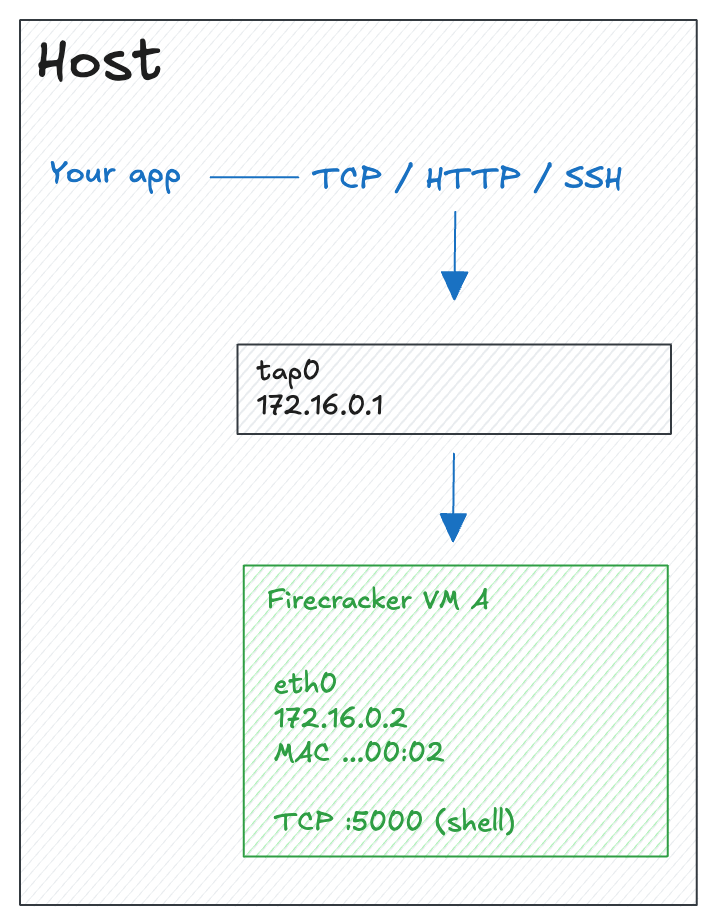
Key concepts
Before diving into the commands, let's define the key networking concepts we'll use:
- TAP device: A virtual network interface between the host and the guest VM. When the guest sends a packet, it appears on the TAP device on the host and vice versa.
- IP address pair: We assign two IPs, one IP goes to the TAP device on the host side (
172.16.0.1), the other to theeth0interface inside the guest (172.16.0.2). - MAC address: A hardware address assigned to the guest's virtual network interface. Firecracker lets you set this explicitly when configuring the network.
- ARP (Address Resolution Protocol): The protocol used to map an IP address to a MAC address on a local network. Normally, the first time the host talks to the guest it sends an ARP request ("who has 172.16.0.2?") and waits for a reply. We can skip this round-trip by pre-seeding the ARP table with a static entry.
Creating the TAP device
On the host, we need to create a TAP device that Firecracker will attach to the guest VM:
# Create a TAP device
sudo ip tuntap add dev tap0 mode tap

# Assign an IP address to the host side
sudo ip addr add 172.16.0.1 dev tap0

# Bring the interface up
sudo ip link set tap0 up

# Pre-seed the ARP table so the first TCP connection doesn't need an ARP round-trip
sudo ip neigh add 172.16.0.2 lladdr 06:00:AC:10:00:02 dev tap0 nud permanent
Updating the guest filesystem
We need to update the init script in the filesystem to configure networking inside the guest instead of starting socat for vsock. Replace the init script with:
sudo tee "$MOUNT_POINT/etc/init-network.sh" > /dev/null << 'EOF'
#!/bin/sh
mount -t proc proc /proc
mount -t sysfs sys /sys
mount -t devtmpfs dev /dev
mkdir -p /dev/pts
mount -t devpts devpts /dev/pts

# Configure the guest network interface
ip addr add 172.16.0.2 dev eth0
ip link set eth0 up
ip route add default via 172.16.0.1

exec /bin/sh
EOF
sudo chmod +x "$MOUNT_POINT/etc/init-network.sh"
The key lines here are:
ip addr add 172.16.0.2 dev eth0: Assigns the guest IPip link set eth0 up: Brings the interface upip route add default via 172.16.0.1: Sets the host as the default gateway
Configuring Firecracker
We need to tell Firecracker about the network interface and update the boot source to use our new init script:
# Set kernel (note the updated init script)
curl --unix-socket /run/firecracker.socket -X PUT "http://localhost/boot-source" \
-H "Content-Type: application/json" \
-d '{
    "kernel_image_path": "./firecracker-vm/vmlinux",
    "boot_args": "console=ttyS0 reboot=k panic=1 pci=off init=/etc/init-network.sh"
}'

# Set rootfs
curl --unix-socket /run/firecracker.socket -X PUT "http://localhost/drives/rootfs" \
-H "Content-Type: application/json" \
-d '{
    "drive_id": "rootfs",
    "path_on_host": "./firecracker-vm/rootfs.ext4",
    "is_root_device": true,
    "is_read_only": false
}'

# Set the network interface (instead of vsock)
curl --unix-socket /run/firecracker.socket -X PUT "http://localhost/network-interfaces/eth0" \
-H "Content-Type: application/json" \
-d '{
    "iface_id": "eth0",
    "guest_mac": "06:00:AC:10:00:02",
    "host_dev_name": "tap0"
}'

# Start the VM
curl --unix-socket /run/firecracker.socket -X PUT "http://localhost/actions" \
-H "Content-Type: application/json" \
-d '{"action_type": "InstanceStart"}'
The network interface configuration tells Firecracker to:
- Connect the guest's
eth0to the host'stap0device - Use the MAC address
06:00:AC:10:00:02which matches the static ARP entry we created earlier
Testing the connection
Once the VM is running, you can test the connection from the host:
ping -c 3 172.16.0.2You should see replies from the guest. You now have a working IP connection between the host and the VM that you can use for SSH, HTTP, or any other TCP/IP protocol.
In the next article we'll see how to use IP namespaces to scale this approach to many VMs created from a single snapshot.